
Jump Start Your KeyScrambler
Green Overlay Window. Tray Icon. That's all you need to know about KeyScrambler.
Overview
You've successfully installed KeyScrambler on your computer. Congratulations! Now go ahead and type something.
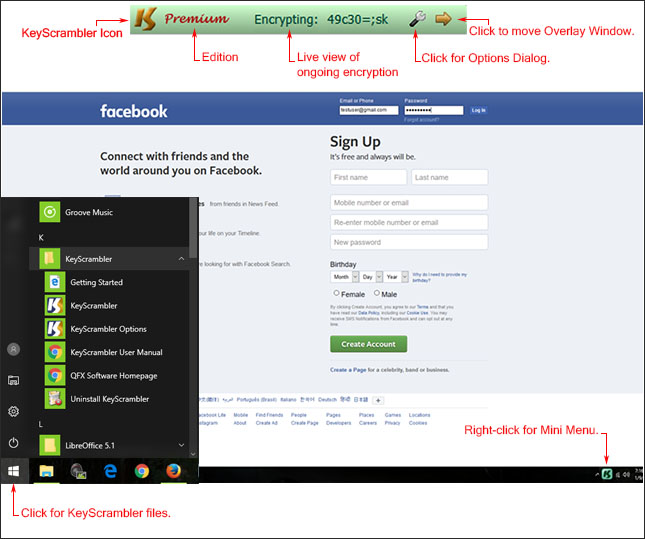
- A small green Overlay Window pops up at the top center of your computer screen. As you keep typing, it displays the ongoing encryption of your typed keys. It has the KeyScrambler icon and two buttons, which let you do things with one click (See Screenshot #1).
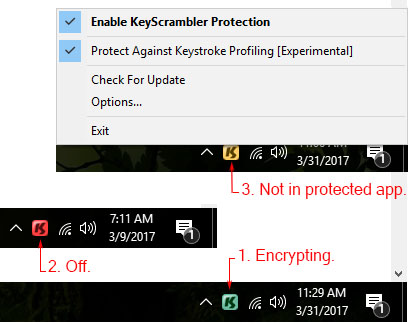
- The KeyScrambler Icon at the bottom right of your screen, in the Tray Area, is the second thing you've noticed. The Tray Icon lets you know KeyScrambler's operating status by color: It is Green when the program is active. Yellow when inactive (This happens when the app in use is not protected by the KeyScrambler Edition you are using). Red when KeyScrambler is turned off.
- In case you're wondering, your KeyScrambler files are stored in the Windows Programs Menu. Click Windows Start Button to access them.
Screenshot #1: Overview: KeyScrambler on your screen
Overlay Window
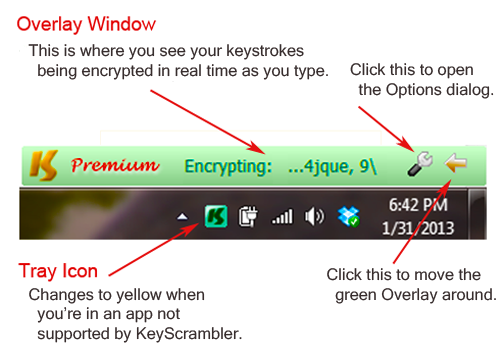
The major function of the green Overlay Window is letting you see the realtime encryption of your typed keys so you know KeyScrambler is protecting your information (See Screenshot #2).
Clicking on the Arrow button lets you change the Overlay Window's default position to where you'd like it to appear on your screen.
Clicking on the Options button will bring up the Options dialog boxes. Clicking any of the six tabs -- General, Display, Update, Advanced, Anti-Profiling, and About --will open the respective dialogs.
When you stop typing, the Overlay Window fades away in 4 seconds.
Screenshot #2: Overlay Window keeps your mind at ease.
Tray Icon
You should keep your Tray Icon visible at all times so you know if KeyScrambler is protecting the app you're using. (See Screenshot #3).
The Tray Icon also gives you quick access to the Options dialog boxes, lets you turn the program on and off, and provides info about new updates.
Screenshot #3: Tray Icon informs by color
Make Tray Icon Visible
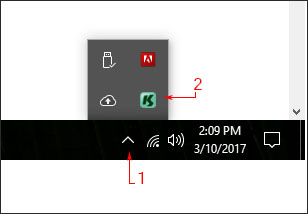
In Windows 7 and 8, the KeyScrambler Tray Icon is often hidden. To make it visible, follow these steps: (See Screenshot #4)
- Click the Up Icon in the Tray Area. Windows Icons Panel comes up.
- Drag the KeyScrambler Icon from the Panel to the Tray Area.
Now that you have KeyScrambler on your computer, it will protect all you typed info all the time against keyloggers and keylogging malware, known or unknown. You don't have to do anything different, but with KeyScrambler, your online life will be so much safer.
Screenshot #4: Make Tray Icon visible
Tech Specs
KeyScrambler runs on Windows 11,10, 8.1, 8, 7, 2003, Vista, and XP (32-bit and 64-bit versions). It also supports East Asian languages--Chinese, Japanese, and Korean.
file size ~1.5 MB; download time ~1 min.
Write to QFX Software Support. We'll be glad to answer any questions you have about our services and products.
Compare Editions
Compares apps supported by Personal, Pro, and Premium.
Features
Explains KeyScrambler's features and benefits for users.
Screenshots
Shows images of KeyScrambler protecting some supported apps.
User Manual
Provides directions for installing and customizing KeyScrambler.